
Operating Systems Introduction: The Invisible Manager of Your Digital Life

TryHackMe Room Walkthroughs · Room 05
We use computers every single day. We click icons, open apps, and save files without a second thought.
But have you ever stopped to think about who is actually in charge when you do that?
If you try to run a web browser and a music player at the same time without an Operating System (OS), they would immediately fight over the speakers and the memory, crashing the whole machine.
An Operating System is the invisible manager that prevents this chaos. I just completed TryHackMe’s Operating System Introduction to understand how this works under the hood.
As always, I am breaking this down in plain English. Whether you are a beginner trying to understand the tech you use every day, or a professional looking for a clear explanation, this is for you.
📁 Full lab notes and structured report: github.com/Darajat-Mohammed/thm-blue-team-investigations
Lesson 1: The Two Worlds (Kernel vs. User Space)
The Core Idea: To keep your computer safe, it is divided into two separate worlds.
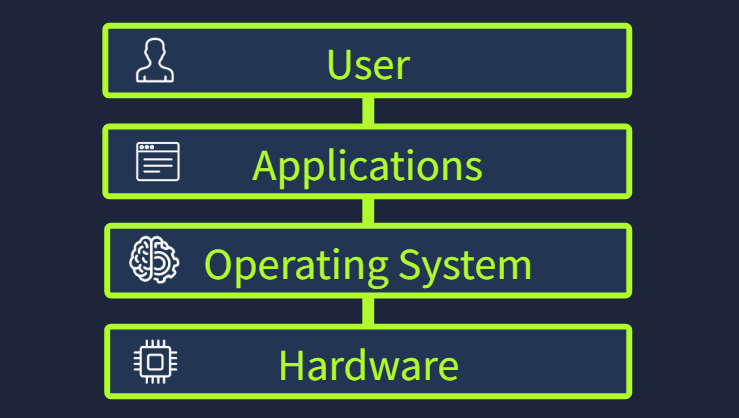
The OS sits right in the middle, managing the conversation between us and the machine.
Imagine a high-security hotel.
The Kernel Space is the penthouse. Only the most trusted staff (the core of the OS) are allowed up there. They have the master keys to the entire building. They control the electricity, the plumbing, and the locks (the CPU, RAM, and hardware).
The User Space is the lobby. This is where the guests (your web browser, your games) hang out. The guests are not allowed to touch the electrical panel or the plumbing. If a guest wants to turn on a light, they have to pick up the phone and ask the penthouse to do it.
In tech, this "phone call" is called a System Call.
Why this matters: If your web browser crashes, it only crashes in the lobby (User Space). The penthouse (Kernel) stays safe, and your whole computer doesn't blue-screen. This separation is the foundation of a stable, secure system.
Lesson 2: The Five Duties of the OS
The Core Idea: The OS is the ultimate project manager.
If a computer is an office, the OS is the manager who makes sure everyone is doing their job without stepping on each other's toes. It does this in five ways:
- Process Management: Deciding which app gets to use the CPU right now. It’s like a traffic cop directing cars at a busy intersection.
- Memory Management: Handing out RAM to apps that need it, and taking it back when they close.
- File System Management: Organizing the filing cabinets (directories), keeping track of who is allowed to read or change a file.
- User Management: Checking ID at the door to make sure you are who you say you are.
- Device Management: Making sure the mouse, the printer, and the monitor all speak the same language.
The Security Foundation: Before you even install an antivirus, the OS is already protecting you. It enforces authentication (passwords), permissions (who can read what), and isolation (keeping apps in their own boxes).
The OS handles all the background checks so you don't have to.
Lesson 3: The Two Languages of the Computer (GUI vs. CLI)
The Core Idea: You can talk to your computer in two different ways.
Think of it like ordering food.
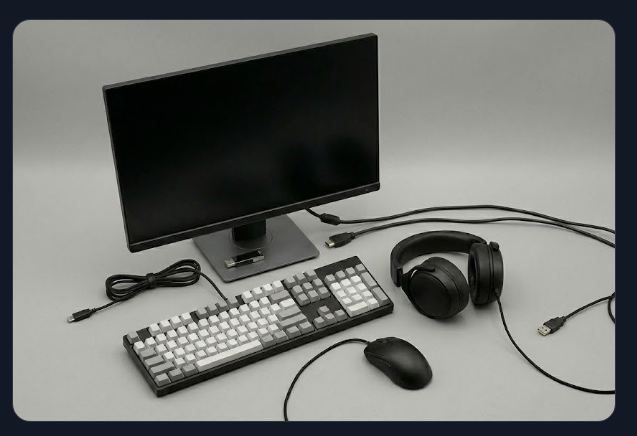
The GUI (Graphical User Interface) is a picture menu. You look at the images, click on the button, and the app does the rest. It is intuitive, visual, and perfect for everyday tasks.
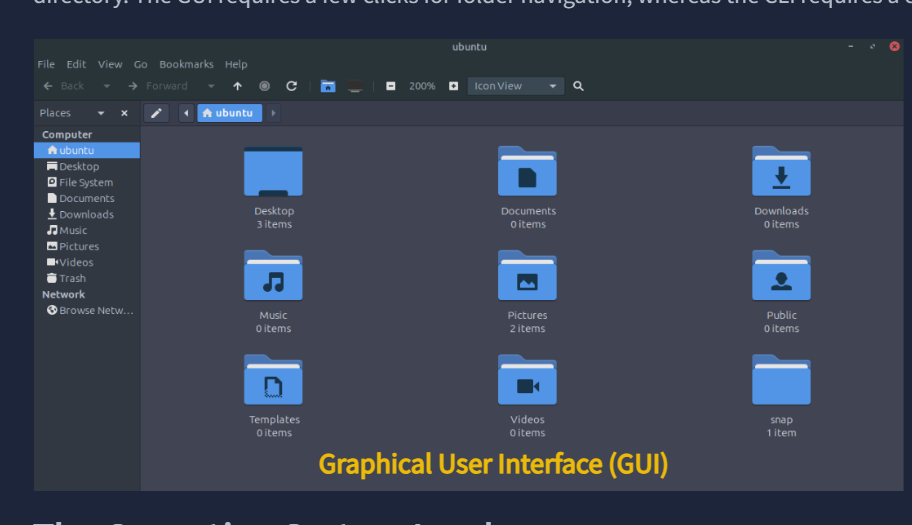
The GUI: Point, click, and navigate visually.
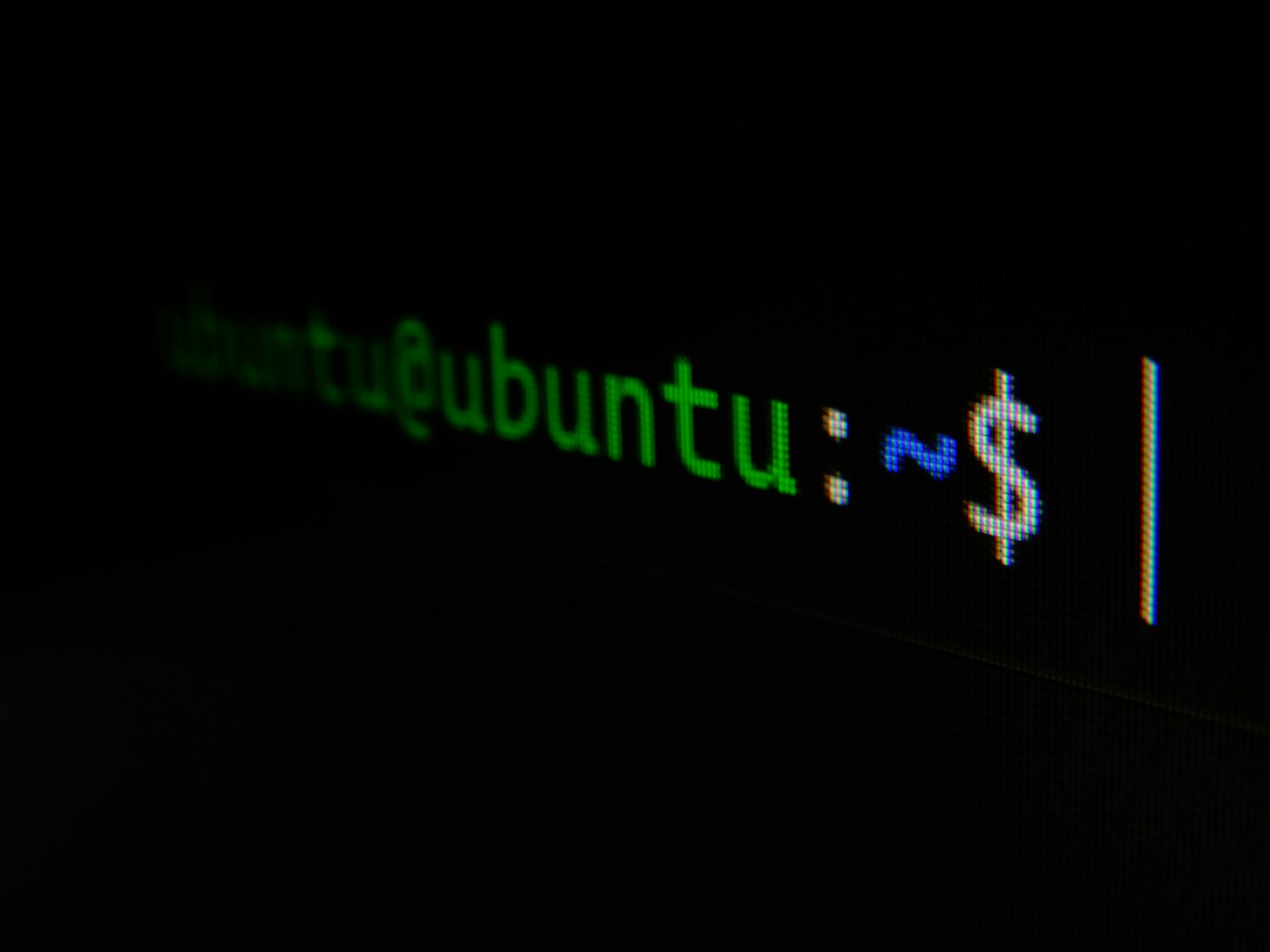
The CLI (Command-Line Interface) is talking directly to the chef. You speak the exact ingredients (commands), and the computer executes them instantly. It is incredibly powerful, fast, and precise but you have to know the exact language.
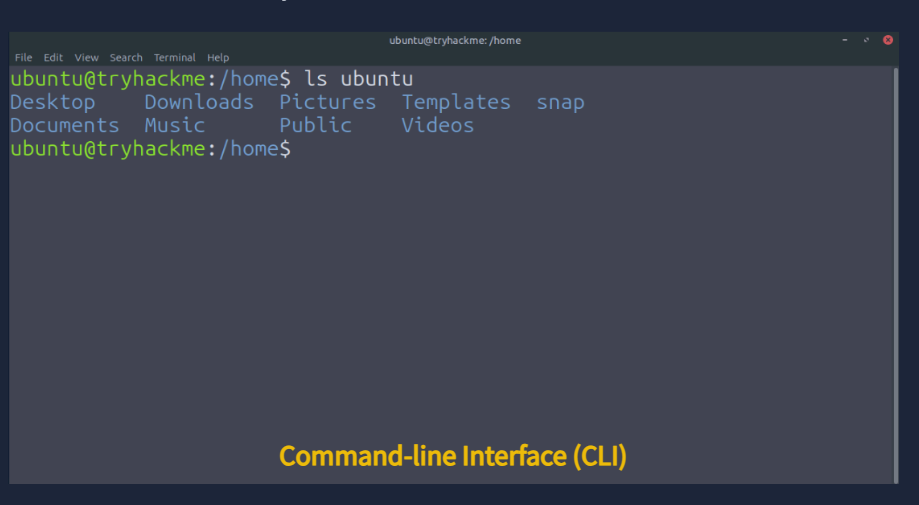
The CLI: Direct commands, instant results, zero fluff.
In cybersecurity, the CLI is non-negotiable. You cannot defend a system if you are only relying on the picture menu. You need to know how to talk to the chef.
Lesson 4 & 5: The OS Landscape
The Core Idea: There is no "one size fits all" computer.
A computer that sits on a desk is nothing like a computer that controls a car engine. Because of this, we have different OS types:
- Desktop: Built for the user. Needs a rich GUI, multitasking, and a mouse.
- Server: Built for the internet. Needs maximum uptime, remote access, and usually has no GUI because it doesn't need a screen.
- Mobile: Built for your pocket. Focuses on battery life, touch screens, and isolating apps so one bad app doesn't drain your phone.
- Embedded/IoT: Built for tiny tasks (smart TVs, routers). It just runs the one job it was built for.
- Cloud/Virtual: The massive server farms that power the internet.
The tech world is dominated by a few major families: Windows (the king of desktops), Linux (the absolute ruler of servers and cloud), macOS (polished and integrated), and Android/iOS (the mobile titans).

The four major families that dominate the digital world.
Final Thoughts: Appreciating the Invisible
When I was in university, I studied Operating Systems as theory. But completing this room gave me a new appreciation for the invisible manager that keeps our world running.
I got my hands dirty exploring the Ubuntu GUI, checking memory allocation, and navigating the file system. I saw that understanding the OS is not just about memorizing technical terms. It is about understanding the very foundation of how security works.
Whether you are a beginner trying to understand the tools you use, or a professional building your defense strategy, the OS is where it all begins.
📁 If you want the structured lab report behind this article, with the technical breakdown of privilege layers, duties, and OS types, it's on GitHub: thm-blue-team-investigations
Join the discussion. Are you learning Linux? What is the hardest part about transitioning from the GUI to the CLI? Let’s talk in the comments.
Next in the series: I'll be diving into Windows Basics and the Windows CLI.
Until then, keep exploring, keep experimenting, and keep learning.
Learning platform: TryHackMe
This article is part of my TryHackMe Room Walkthroughs series.
About the author
- I am a Technical Writer and SOC Analyst in training. My mission is simple: I bridge the gap between complex technology and the people who need to understand it. I believe tech shouldn’t be locked behind a wall of jargon. I know what it feels like to be a beginner staring at a terminal, wondering if you need a supercomputer for a brain to make it in this industry. You don't. I write for the career switchers, the self-taught learners, and the everyday users who just want to understand the tools they use. Through my writing, I make the confusing concepts click, so the next person doesn't have to struggle through the same roadblocks I did. I document my own journey into defensive security, but my broader vision is to make all technology accessible to everyone.
Comments
Join the discussionNo comments yet. Be the first to comment.
TryHackMe Room Walkthroughs: Lab Logs & Analysis
Practical TryHackMe room walkthroughs built on clear methodology and hands-on execution. Every post breaks down the exact commands, network behavior, and security concepts behind the challenge serving as a documented proof of work in defensive and offensive operations. https://tryhackme.com/p/DarajatMohammed?utm_campaign=social_share&utm_medium=social&utm_content=profile&cardVersion=ae1bc697010c&utm_source=copy&share_date=2026-11-15&sharerId=6af0da2554c63fd566a6315d